Advanced
Resize images
Inkdrop lets you control how large an image renders straight from Markdown, using Marp-style image size specifiers. Set a size with a quick toolbar or by typing the specifier yourself — no custom CSS or plugin required.
Use the image resize toolbar
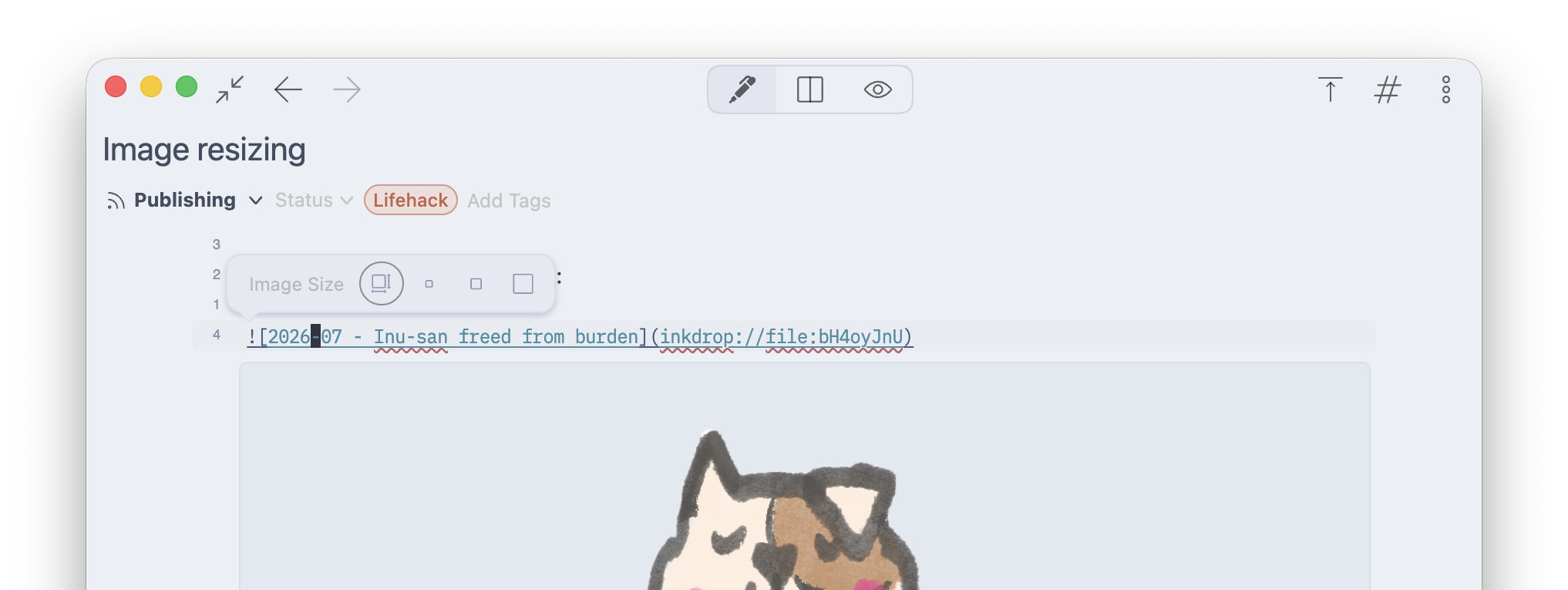
The easiest way to resize an image is with the toolbar:
- Place the cursor anywhere inside an image in the editor.
An Image Size toolbar appears above it. - Choose a preset:
- Auto — the image's natural size (no specifier).
- Small — 30% of the available width.
- Half — 50% of the available width.
- Full — 100% of the available width.
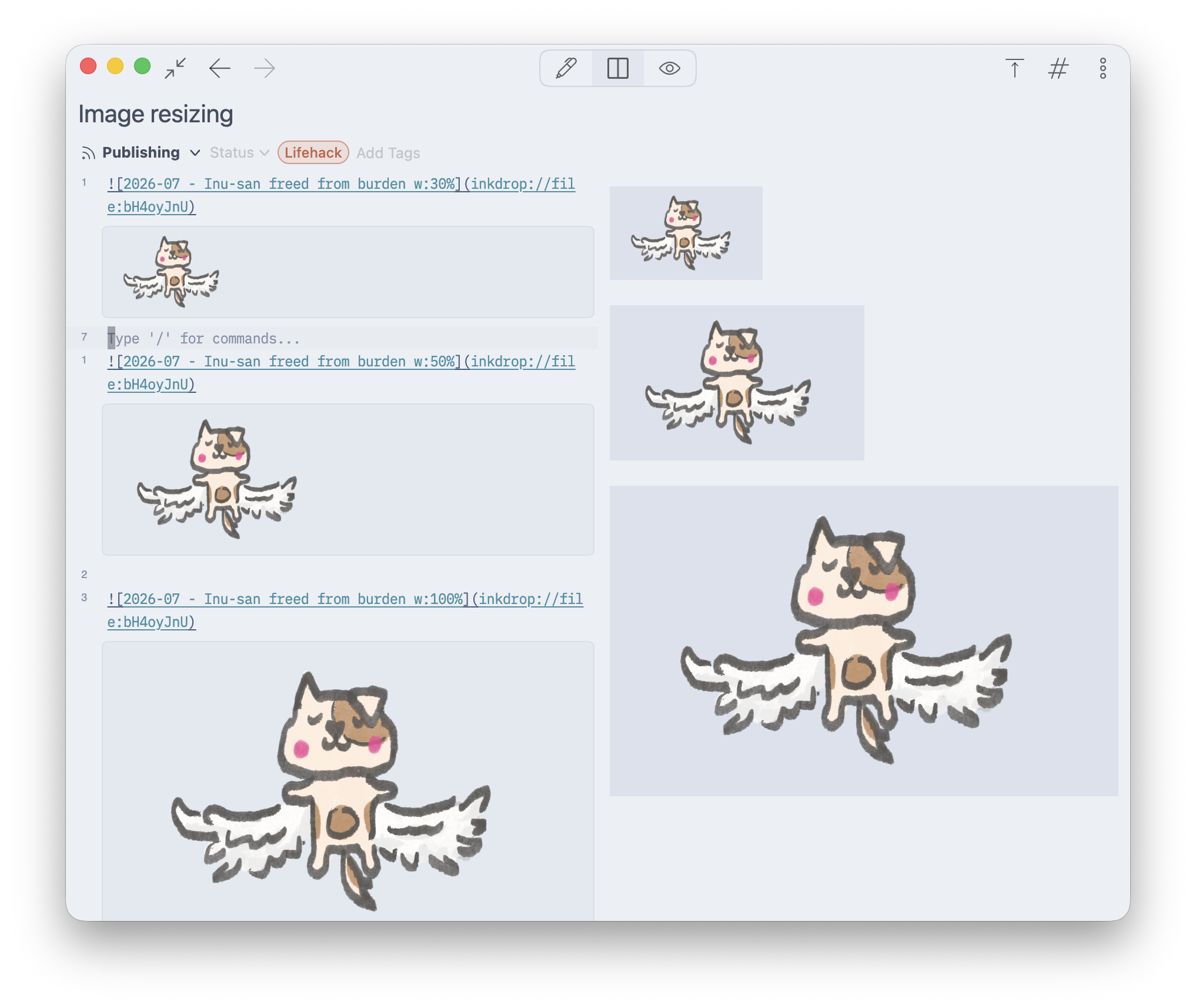
The toolbar highlights the preset matching the image's current size and writes the specifier into the image for you.
Write size specifiers by hand
You can also type the specifier into the image's alt text. Inkdrop follows the Marp image syntax — set the width, the height, or both:


width: and height: have the shorthands w: and h::

- A bare number is treated as pixels, so
w:320is the same aswidth:320px. - Any caption text in the alt is preserved —
keeps the “Diagram” label.
Supported units
A size can be a percentage (50%), a pixel value (200px or a bare 200), or any of these CSS length units: px, pt, pc, in, cm, mm, em, ex, ch. To return an image to its natural size, use the Auto preset or remove the specifier.
Get help