New to Inkdrop
How to write Markdown notes
After installing Inkdrop, you may notice that the example notes contain symbols like # or **. These are Markdown syntax — a simple, plain-text way to format writing. It's also the format your AI tools think in: the plans your coding agent writes, the instructions you give it, and the answers it gives back are all Markdown. This page introduces Markdown and explains why it's worth getting comfortable with.
What is Markdown? 🤔
Markdown is a lightweight markup language that uses a few special characters to format text. You don't need HTML or a rich-text toolbar to make text bold, italic, or a link — you just type:
| You type | You get |
|---|---|
# Heading | A top-level heading |
## Heading | A second-level heading |
*Italic* | Italic |
**Bold** | Bold |
~~Line-through~~ | |
[Link](https://www.craftz.dog/) | Link |
`Inline code` | Inline code |
- Item | A bulleted list item |
Because it's just plain text, a Markdown note stays readable even before it's rendered, works in any editor, and will outlive any particular app.
Where is Markdown used? 🌏
Basically everywhere — and increasingly, it's the default output of AI:
- AI chats and coding agents: ChatGPT, Claude, Cursor, Claude Code, and other agents reply in Markdown, and write their plans, reports, and docs in it.
- Agent instruction files: Files like
CLAUDE.md,AGENTS.md, andSKILL.mdthat tell AI agents how to work are written in Markdown. - GitHub: README files, issues, pull requests, and comments.
- Slack and Discord: Messages can be formatted with Markdown.
- Websites and docs: Static site generators like Docusaurus, Astro, and Jekyll use Markdown as their primary content format.
- Inkdrop: Supports standard Markdown as well as GitHub-flavored extensions.
Why Markdown matters when working with AI 🤖
Markdown is the format that you and your AI agents share. Both of you can read it, write it, and edit the same note — no conversion, no lock-in. That makes it a natural place to divide the work:
- You write what only you know. The direction you want to go, rough requirements, decisions you've made, gotchas you've hit, and why things are the way they are. An agent can't guess this context, so it's worth jotting down by hand.
- AI writes the rest in the same format. With the MCP server, your coding agent can read your notes and write into them. Start a note from a template like Implementation plan, jot down your requirements, and let the agent fill out the rest — asking you about open decisions and logging its progress as it goes. Agent Skills teach it to write notes the way you would.
- You review and refine. Since everything is plain Markdown in Inkdrop, you can skim the agent's plan, fix what's off, and keep it alongside the rest of your knowledge.
Knowing Markdown makes you faster at every step of that loop. See Note-driven agentic coding for a step-by-step workflow.
What can I do with Markdown? 📝
Beyond the basics above, Inkdrop supports GitHub-flavored Markdown (GFM for short), a superset of Markdown with features for day-to-day technical writing. These are also exactly what AI agents reach for when they write structured notes.
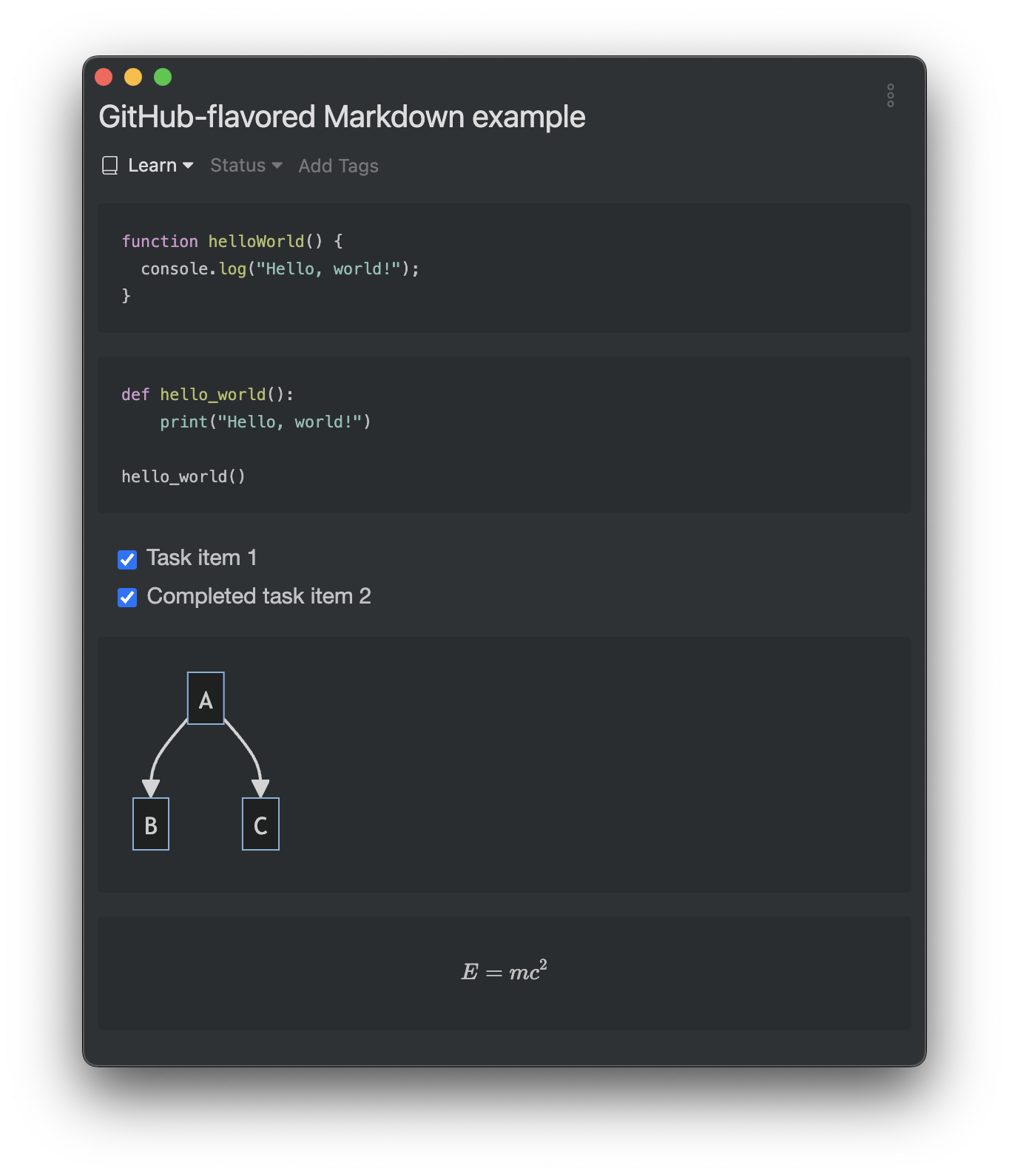
- Fenced code blocks: Wrap code in three backticks (```) and specify a language for syntax highlighting.
```jsfunction helloWorld() {  console.log("Hello, world!");}```
```pythondef hello_world():    print("Hello, world!")
hello_world()```- Task lists: Track to-dos with checkboxes — handy for the phases of a plan you and your agent work through.
- [ ] Task item 1- [x] Completed task item 2- Tables: Compare options or summarize decisions in rows and columns.
| Option | Pros | Cons || ------ | ---------- | ------------- || A | Simple | Less flexible || B | Extensible | More setup |- Alerts: Call out notes, tips, and warnings so they stand out when skimming.
> [!WARNING]> This migration drops the old table. Back up first.- Mermaid: Generate diagrams and flowcharts from text. Great for sketching architecture — and something you can ask the inline AI assistant to draw from your notes.
```mermaidgraph TD; A-->B; A-->C;```- Math expressions: Write LaTeX-style math for technical or scientific notes.
```mathE = mc^2```In Inkdrop, these examples are rendered like the following:
For the full syntax, see Basic writing and formatting syntax.
Create your first note
Even when an agent does a lot of the writing, you'll still write by hand to give it the context it doesn't have. Let's try it.
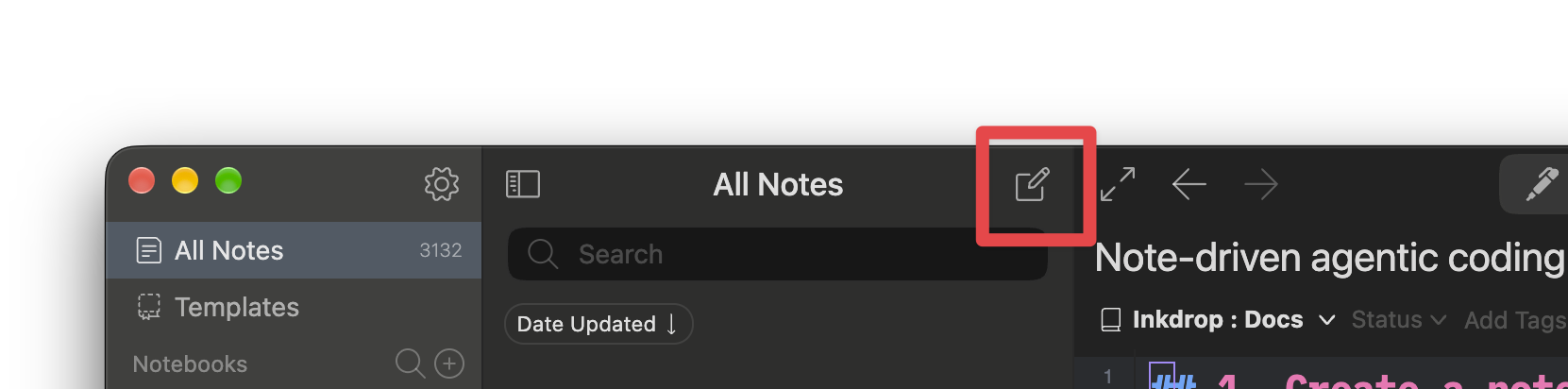
To create a new note, you can either click the icon on the right top of the note list or use the Command+N / Ctrl+N shortcut.
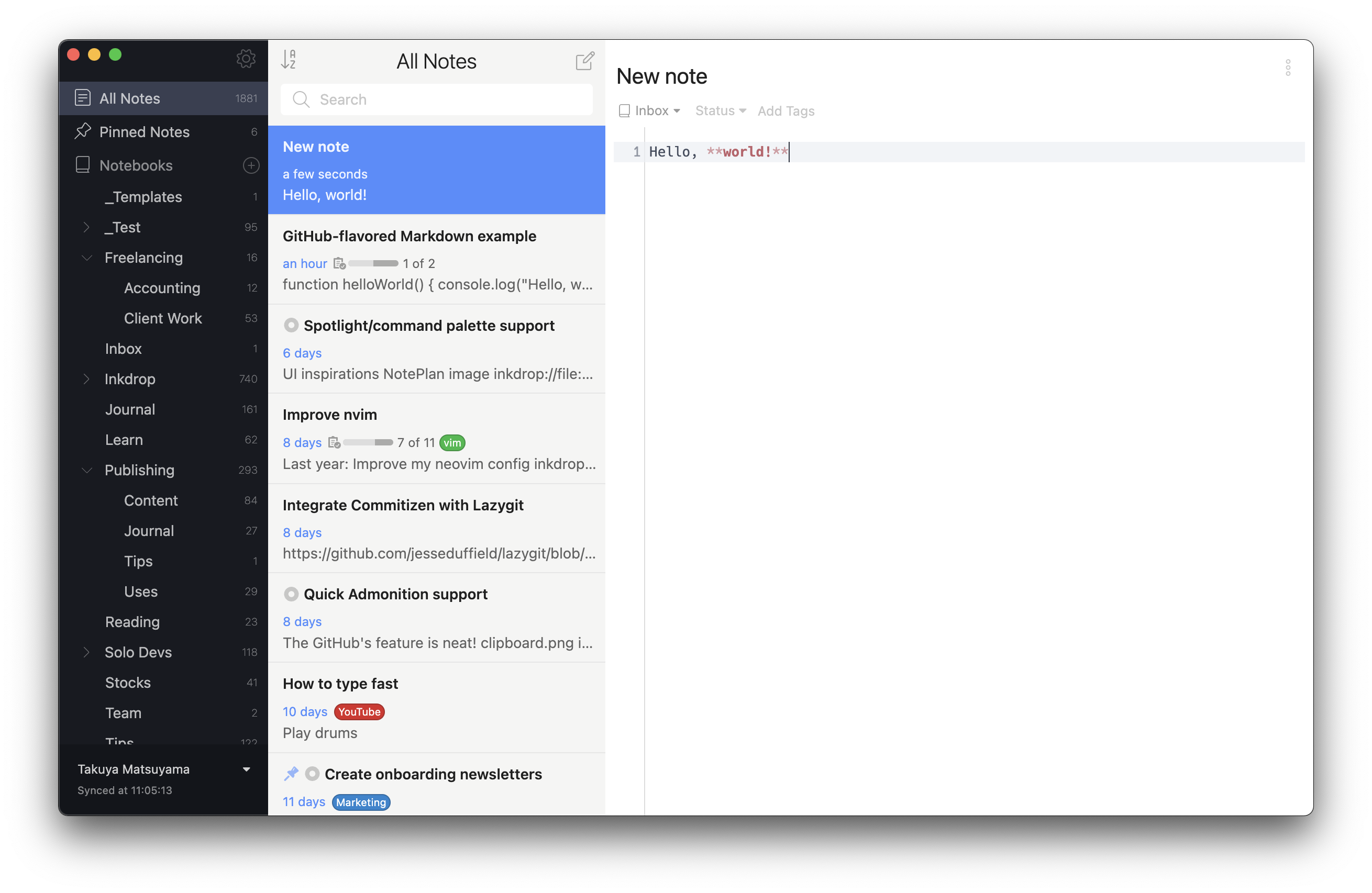
A brand new note will appear in the rightmost Editor section. After editing, the newly created note will appear in the Note list section.
Start writing Markdown
Begin typing whatever you want, or choose a template by pressing Command+T / Ctrl+T to start from a ready-made structure.
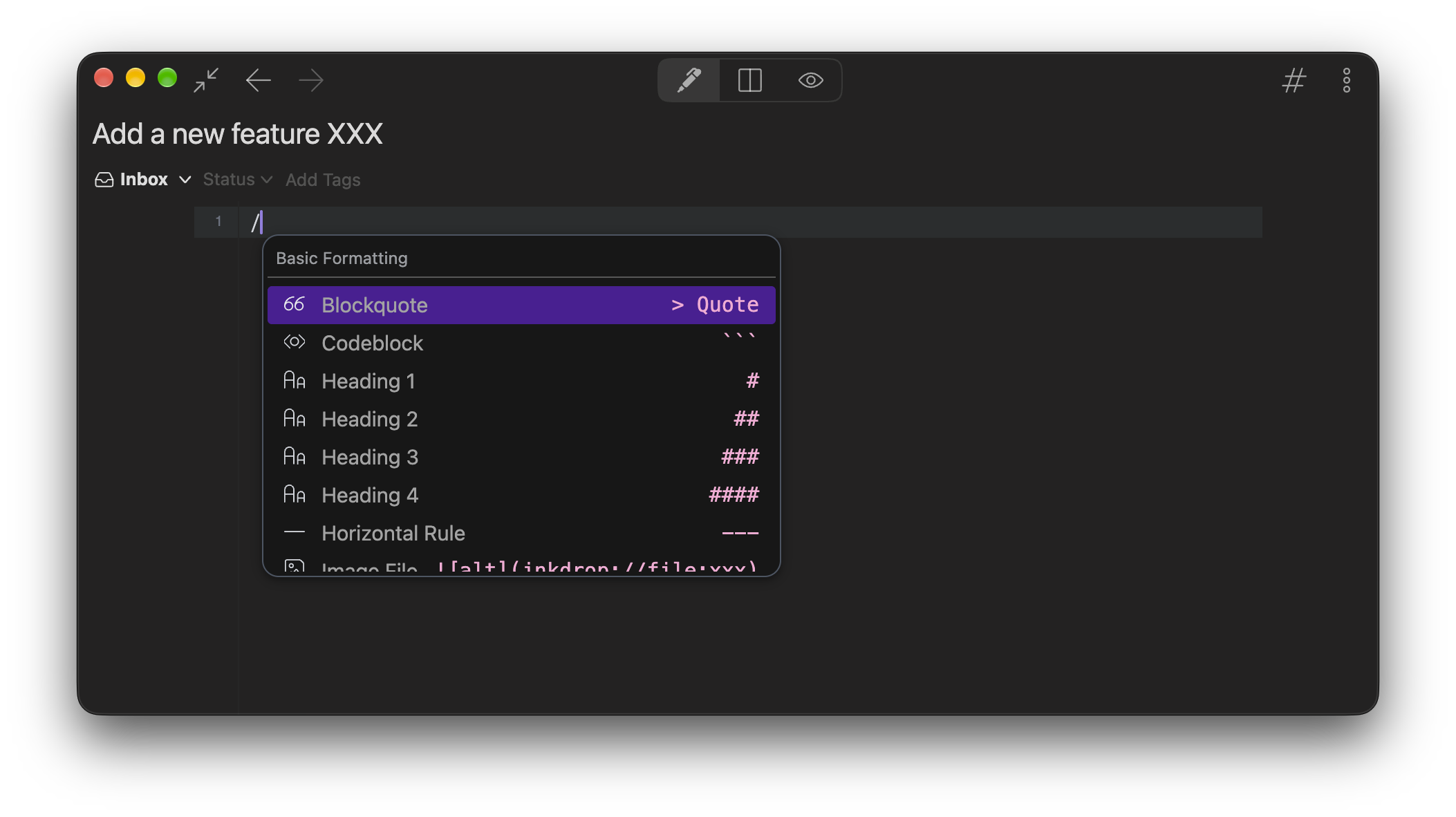
If you are new to Markdown, you don't have to memorize the syntax right away. Press / to open the slash menu, and pick what you want to insert — a code block, heading, blockquote, horizontal rule, image, and more. Keep typing to filter the list.
To format existing text, select it and a floating toolbar appears. Use it to turn the selection into a heading, make it bold or italic, add a link, wrap it in code, convert it into a list or task list, and more.
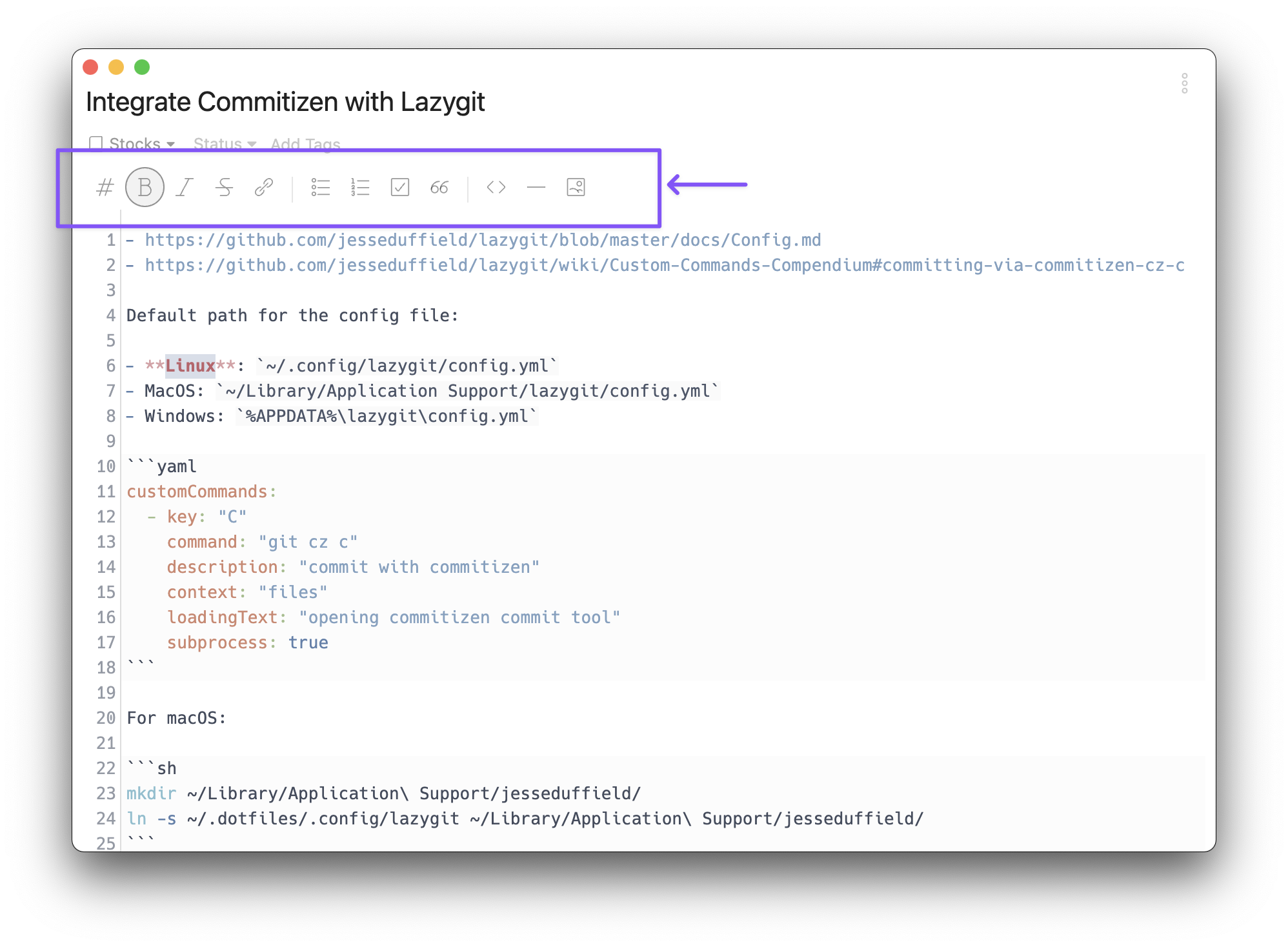
Distraction Free Mode
You may notice that the sidebar and note list bar are hidden in the above screenshot. That is 'Distraction Free Mode' — It lets you focus on the writing process by hiding the sidebar and note list.
To toggle the 'Distraction Free Mode':
- Use Command+Shift+D / Ctrl+Shift+D.
You can even hide the toolbar with controls for quick formatting. For this, take the following steps:
- Open Preferences by clicking the icon in the upper right corner of the sidebar.
You can also use Command+, / Ctrl+,. - Go to Editing and clear the Toolbar checkbox.
The toolbar is hidden.
Live preview
Inkdrop lets you preview notes to see what they eventually look like.
To preview a note:
- Open a note and use Command+P / Ctrl+P.
The note and its preview are displayed side-by-side.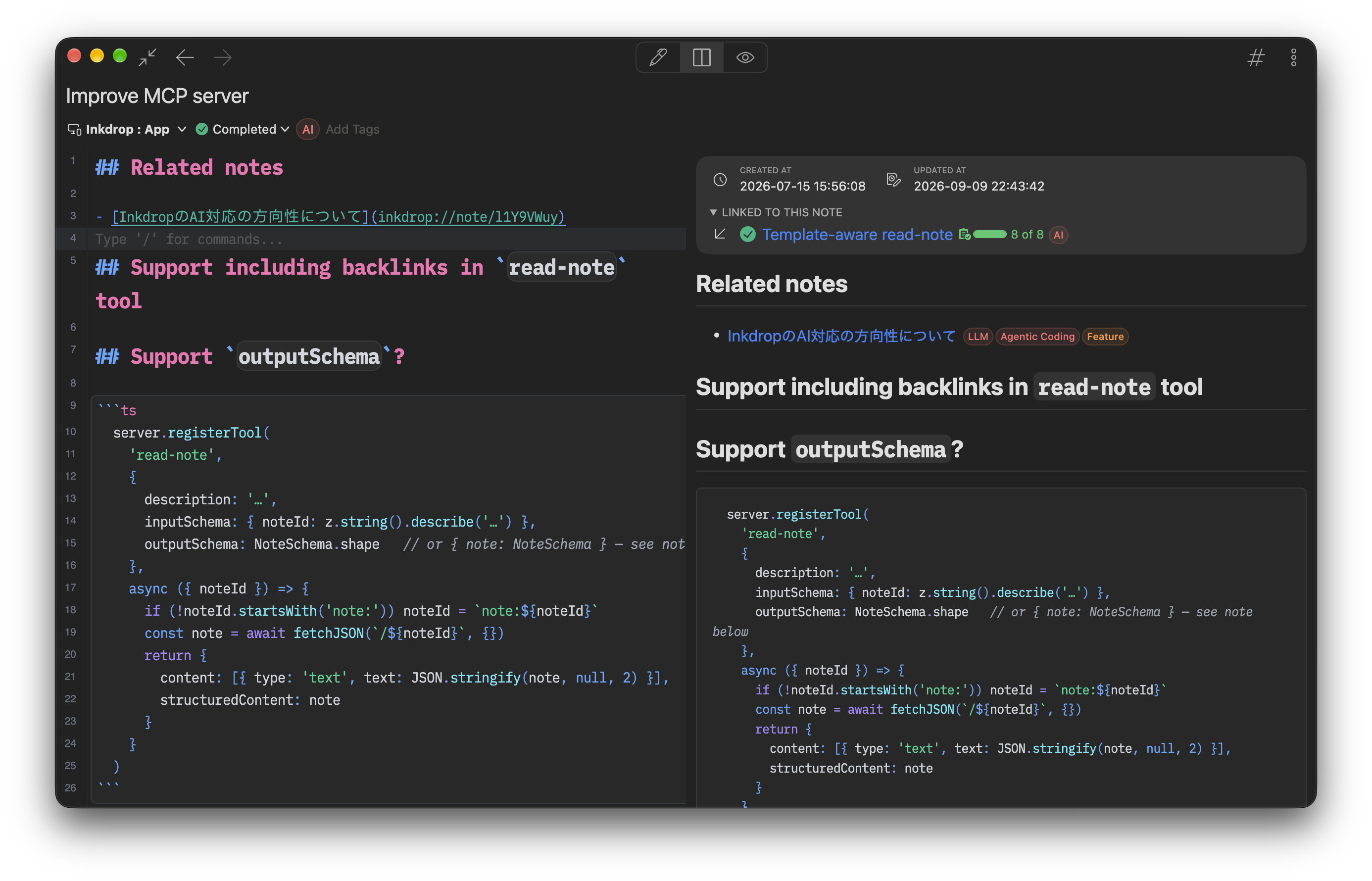
You can also switch the view mode with the buttons at the top of the editor:
- Click to show the editor only.
- Click to show the note and its preview side-by-side.
- Click to show the preview only.

Markdown's role in Inkdrop 📚
Inkdrop is built around Markdown because it's the most durable, portable way to capture technical knowledge. It lets you jot down thoughts, code snippets, and to-do lists with minimal effort — and because it's the same format your teammates and AI agents use, your notes become a shared workspace rather than a private silo.
The more fluent you are in Markdown, the faster you can capture what you know, hand context to your agents, and review what they give back.
Get help