Customization
Extend Inkdrop with plugins
Plugins add new functionality or provide new look to Inkdrop. There are more than 100 plugins registered on the Inkdrop plugin registry.
Why do you need plugins? Markdown is a very simple markup language with plain-text-formatting syntax. Because of its simplicity, people have been customizing it for their use-cases. So, there are a lot of 'flavors' of Markdown extended by the third parties such as GitHub. You may like one of the flavors already. For example, you may want to write math formulas with LaTeX syntax, but Markdown itself does not support it by default. You can use math plugin to make Inkdrop support to render math. Those language extensions make Markdown incredibly powerful and help you write notes effectively.
Plugins can also change everything from the very look and feel of the entire interface to the basic operation of even core functionality. For example, vim plugin provides Vim keybindings. nord-ui provides Nord theme to the Inkdrop UI.
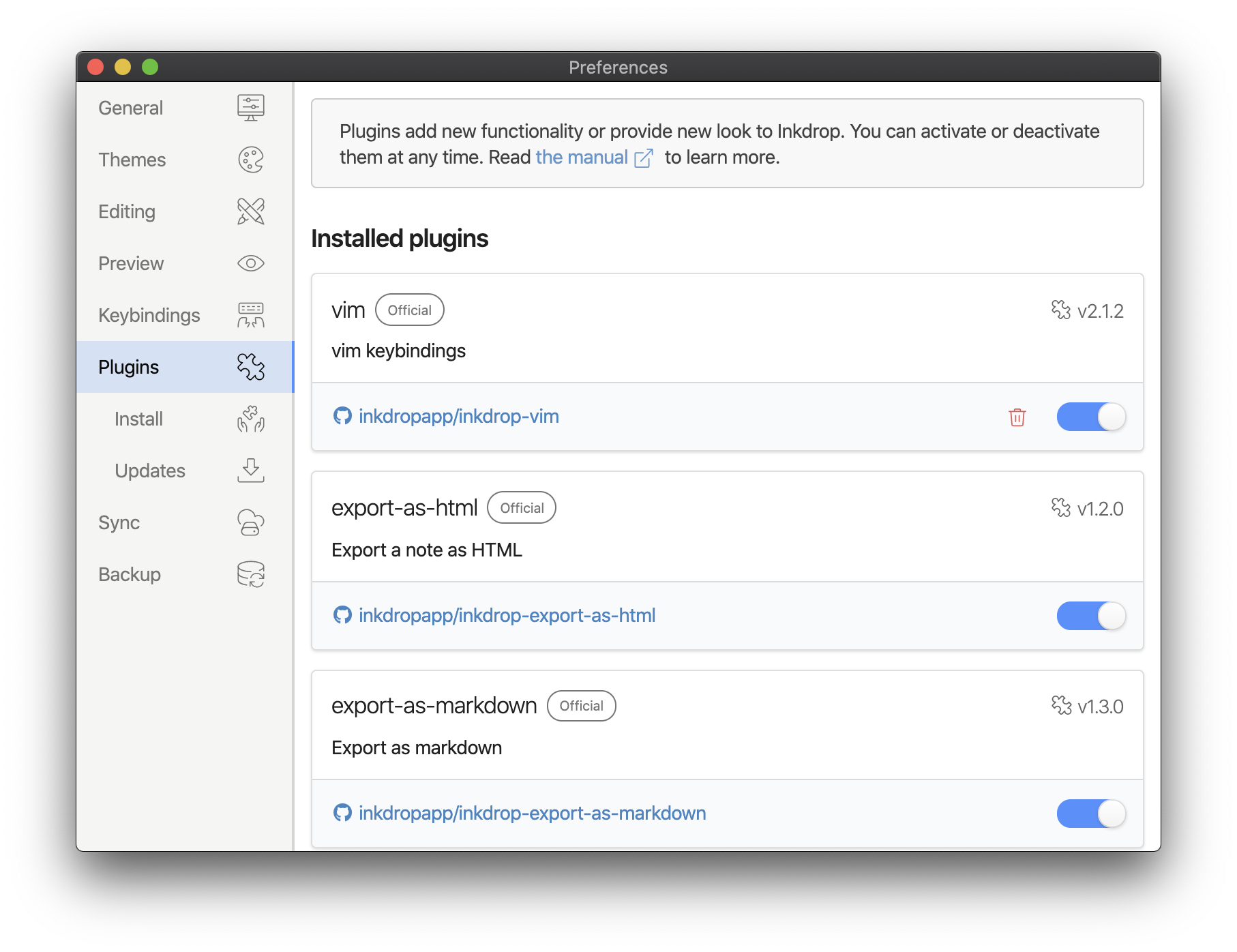
You can activate or deactivate them at any time. Go to Preferences > Plugins on macOS or File > Settings > Plugins on Windows and Linux to see a list of what’s installed. You should see some default plugins are already installed.
Install plugins
In order to install new plugin, you can use the Install tab in the Preferences window.
Type your search query into the input box on the right hand of the pane. All of the plugins will come up with an "Install" button. Clicking that will download the plugin and install it. Your note app will now have the functionality that the plugin provides.
Mobile
The plugins on mobile are not supported, unfortunately, because Apple prohibits third-party code execution on iOS.
Plugin settings
Once a plugin is installed in Inkdrop, it will show up in the Preferences window under the "Plugins" tab, along with all the pre-installed plugins that come with Inkdrop.
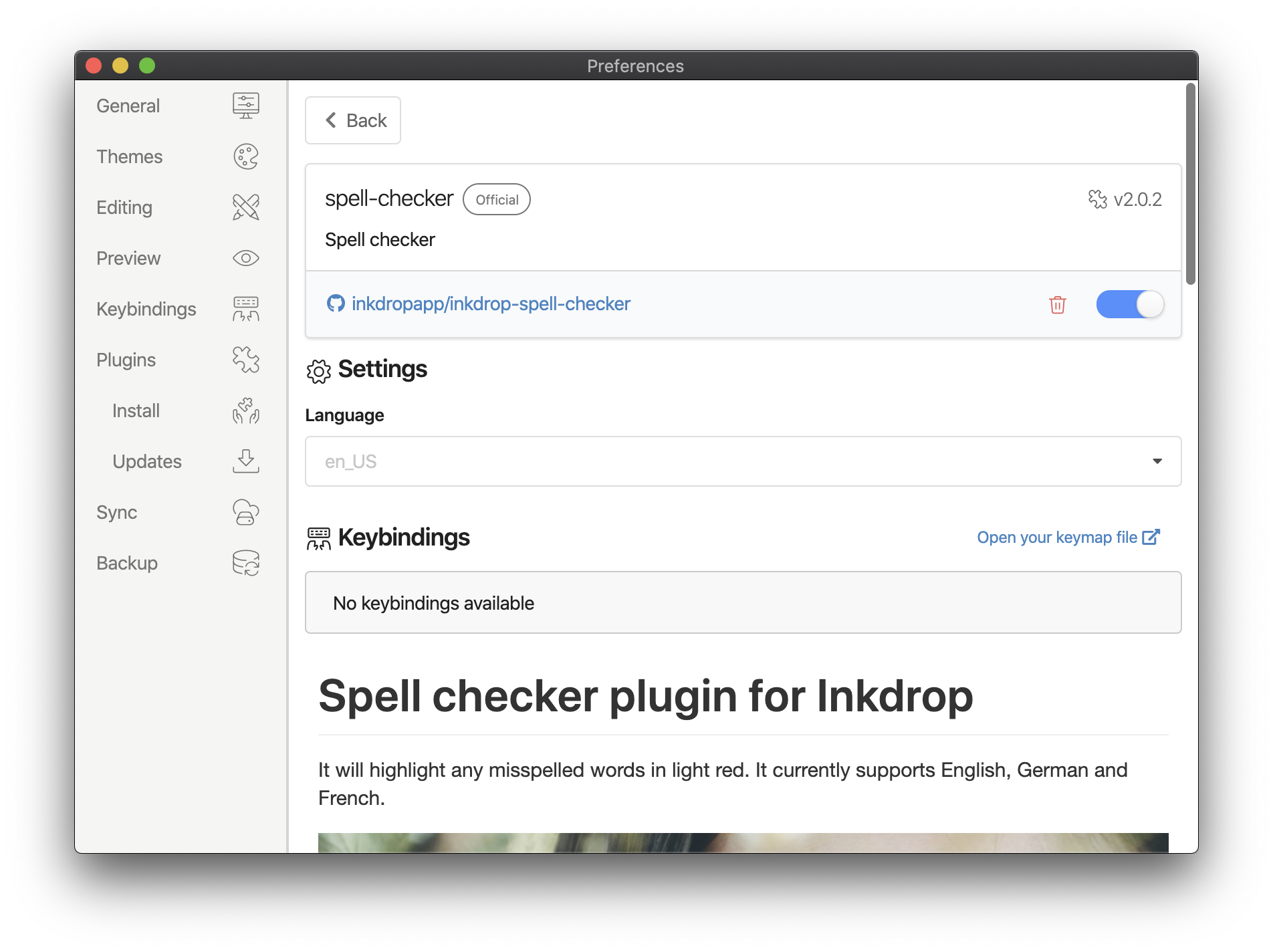
Clicking the plugin will give you the settings screen for that plugin specifically. Here you have the option of changing some of the default variables for the plugin, seeing what all the command keybindings are, disabling the plugin temporarily, looking at the source code, seeing the current version of the plugin and uninstalling the plugin.
Keep plugins up to date
If a new version of any of your plugins is released, Inkdrop will automatically detect it and notify you like this:
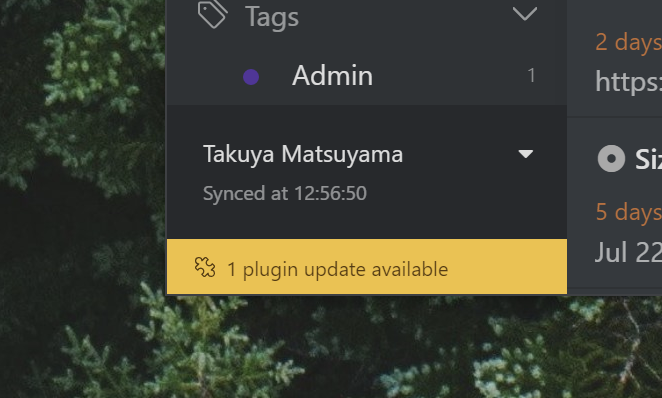
Clicking the notification will give you the update screen where you can see the plugins that have the new version. By clicking "Update" button for the plugin, you can quickly update it. This helps you easily keep all your installed plugins up to date.
Change themes
A theme controls how the whole app looks — the UI, the Markdown editor, and the Markdown preview — and comes in either a light or dark appearance.
To switch themes, open the Themes tab in the Preferences window and pick one from the Theme selector:
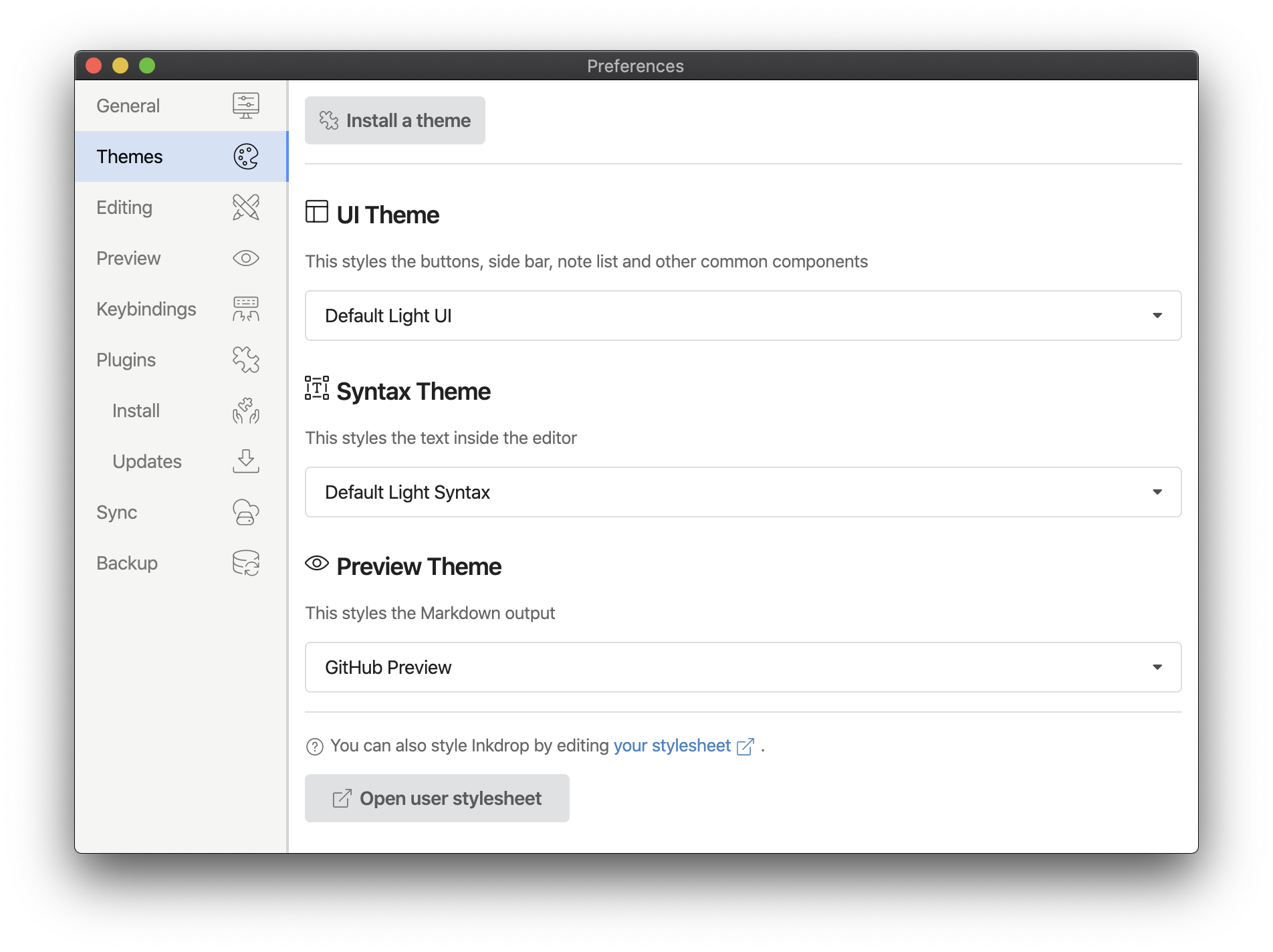
You can also enable Automatically toggle between the default light and dark themes based on the system preferences to follow your operating system's appearance.
Command line (ipm - Inkdrop Plugin Manager)
You can also manage plugins and themes from the command line with ipm, the Inkdrop Plugin Manager. It's a separate CLI that you install from npm:
npm install -g @inkdropapp/ipm-cli
Before your first use, connect it to your Inkdrop account:
ipm configure
This opens the desktop app to display your access key, which you paste back into the terminal. The credentials are then stored securely in your system's keyring.
Finding new plugins
Use ipm search to search the plugin registry for a term:
ipm search emoji
Installing plugins
Once you've found a plugin to install, use the ipm install command:
ipm install <package_name>to install the latest version.ipm install <package_name>@<package_version>to install a specific version.
For example, ipm install markdown-emoji@0.1.0 installs the 0.1.0 release of the markdown-emoji package.
Updating plugins
Check for outdated plugins with ipm outdated, then update them to the latest version:
ipm update
Uninstalling plugins
You can uninstall a plugin by running:
ipm uninstall <package_name>
Listing installed plugins
Run ipm list (or ipm ls) to see everything you currently have installed.
Get help