Basics
Fuzzy finder Telescope
Telescope is Inkdrop's built-in fuzzy finder — a single search bar that queries several sources at once. Run a command, jump to a notebook, filter by tag, or move around the note you're writing, without ever reaching for the mouse.
You might be familiar with the command palette from VS Code, Sublime Text, or other editors — yes, Telescope is Inkdrop's, and commands are only one of the things it searches.
Open Telescope
Press Command+K / Ctrl+K, or choose Navigate → Toggle Telescope from the application menu.
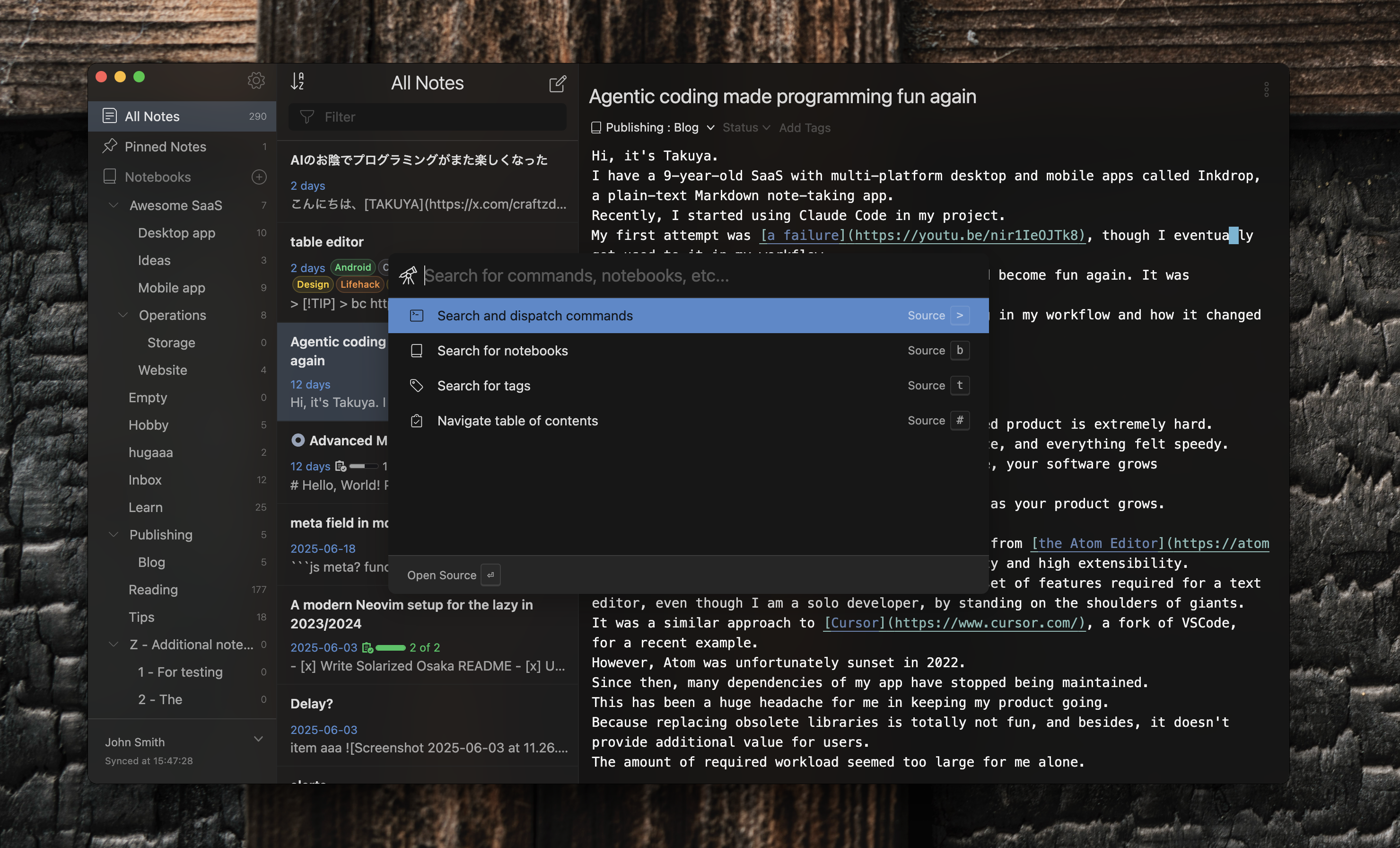
While the search field is empty, Telescope lists the sources available to you, each with its prefix shown on the right. Start typing and it searches all of them at once — matching commands, notebooks, and tags appear together in one list, with the kind of each item labeled on the right.
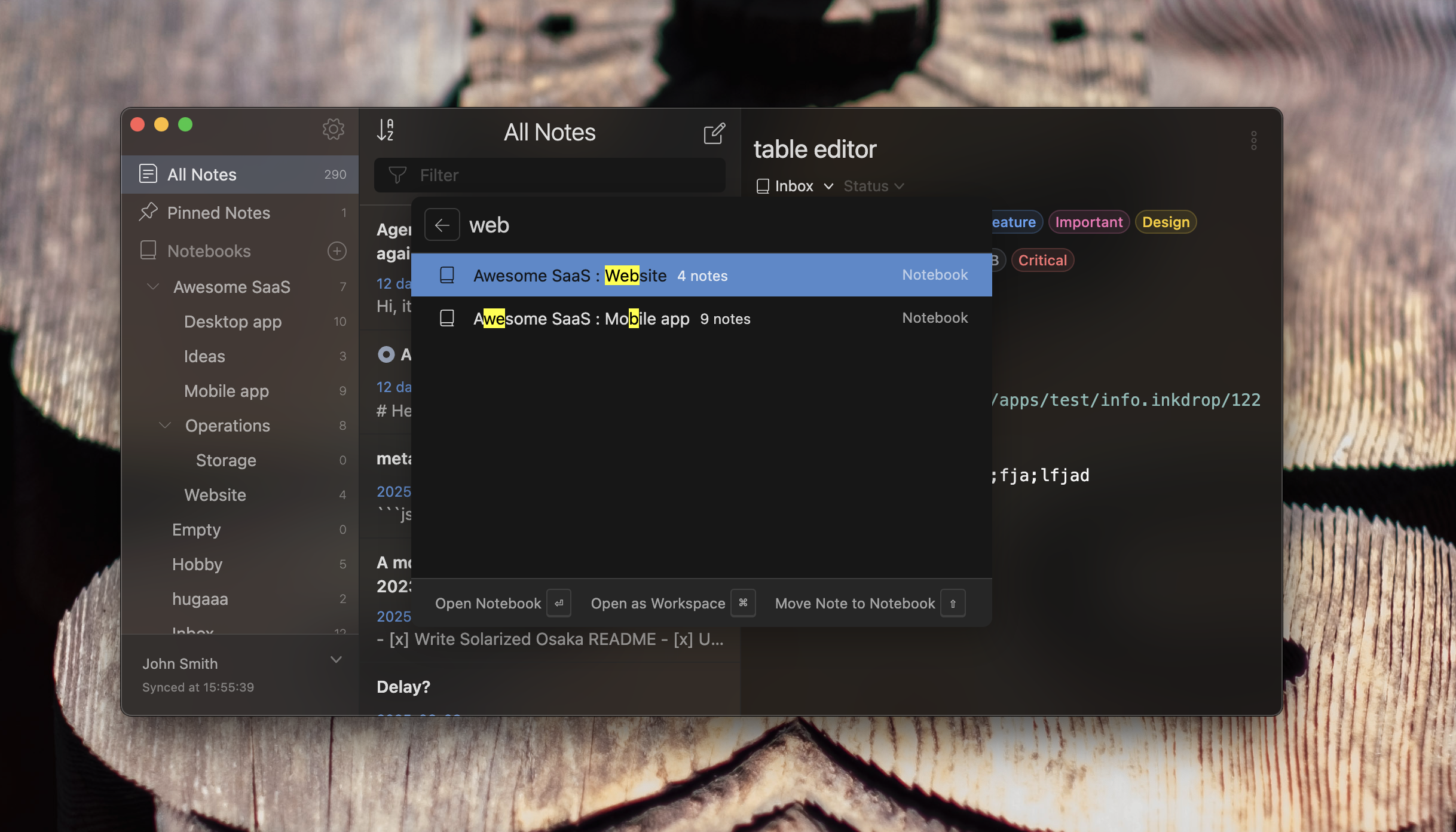
Matching is fuzzy, so you don't have to spell anything exactly: type a few characters in the right order and Telescope finds it, highlighting the characters that matched.
Narrow the search to one source
Type a source's prefix followed by Space to scope Telescope to that source alone. The prefix disappears, the placeholder tells you what you're searching now, and a button appears on the left of the search field to take you back.
| Source | Prefix | What it searches |
|---|---|---|
| Commands | > | Every command available in the app |
| Notebooks | b | All notebooks, by their full path |
| Tags | t | All tags |
| Table of contents | # | Headings and task items in the note you're editing — comes from the telescope-toc plugin |
| Themes | h | Every installed theme — comes from the telescope-themes plugin |
Esc steps back one level at a time: it clears what you've typed first, then returns you to the source list, and finally closes Telescope.
Run a command
Nearly every operation in Inkdrop is a command, and the Commands source (>) is how you find one by name. Its keyboard shortcut, if it has one, is shown on the right — a good way to learn shortcuts as you go.
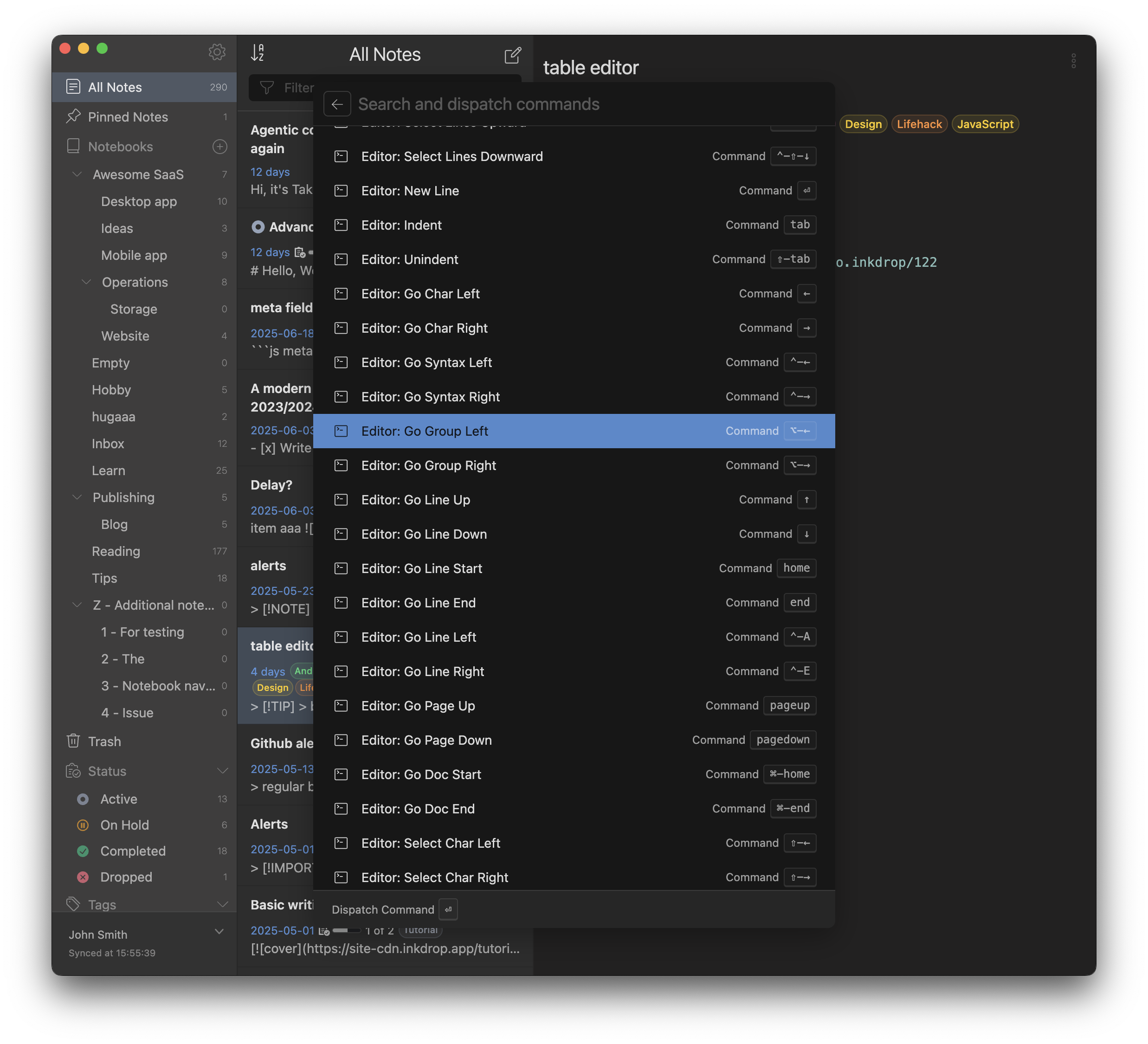
The list is built for wherever your focus was when you opened Telescope, so editor commands show up when you were writing, and note list commands show up when you were browsing. Choose Navigate → Run Command… to jump straight to this source.
Jump to a notebook
The Notebooks source (b) lists every notebook by its full path — Awesome SaaS : Website — along with its icon and note count.
| Press | Action |
|---|---|
| Enter | Open the notebook in the note list |
| Command+Enter / Ctrl+Enter | Open the notebook as a workspace |
| Shift+Enter | Move the note you're editing into that notebook |
Filter by tag
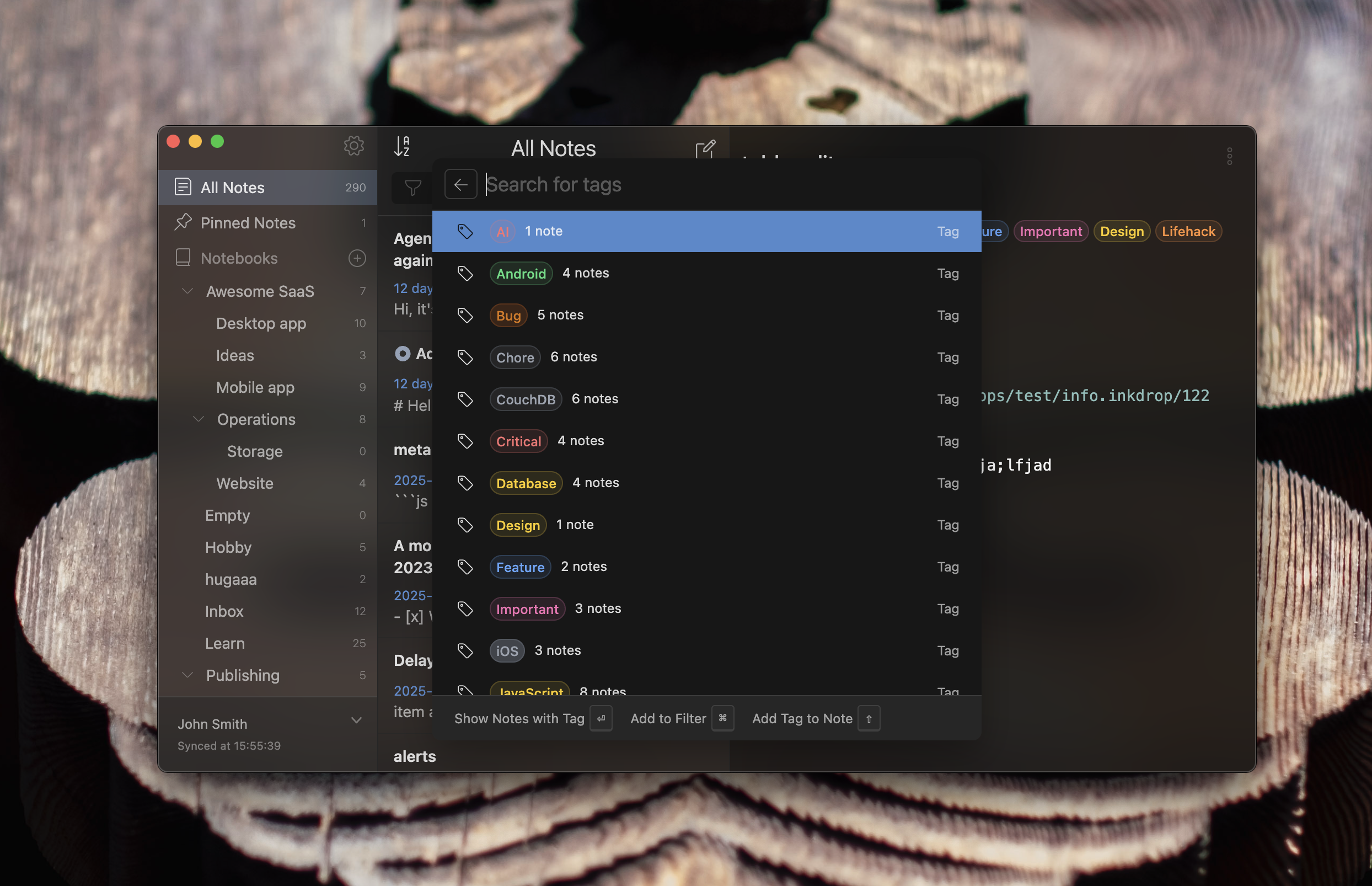
The Tags source (t) lists your tags in their colors, with the number of notes carrying each one.
| Press | Action |
|---|---|
| Enter | Show the notes with that tag |
| Command+Enter / Ctrl+Enter | Add the tag to the current note list filter |
| Shift+Enter | Add the tag to the note you're editing |
Navigate the current note
The telescope-toc plugin — installed for you automatically — adds the Table of contents source (#). It lists the headings of the note you're editing, with their level shown as #, ##, ###, plus its task items, so you can jump to any section by name.
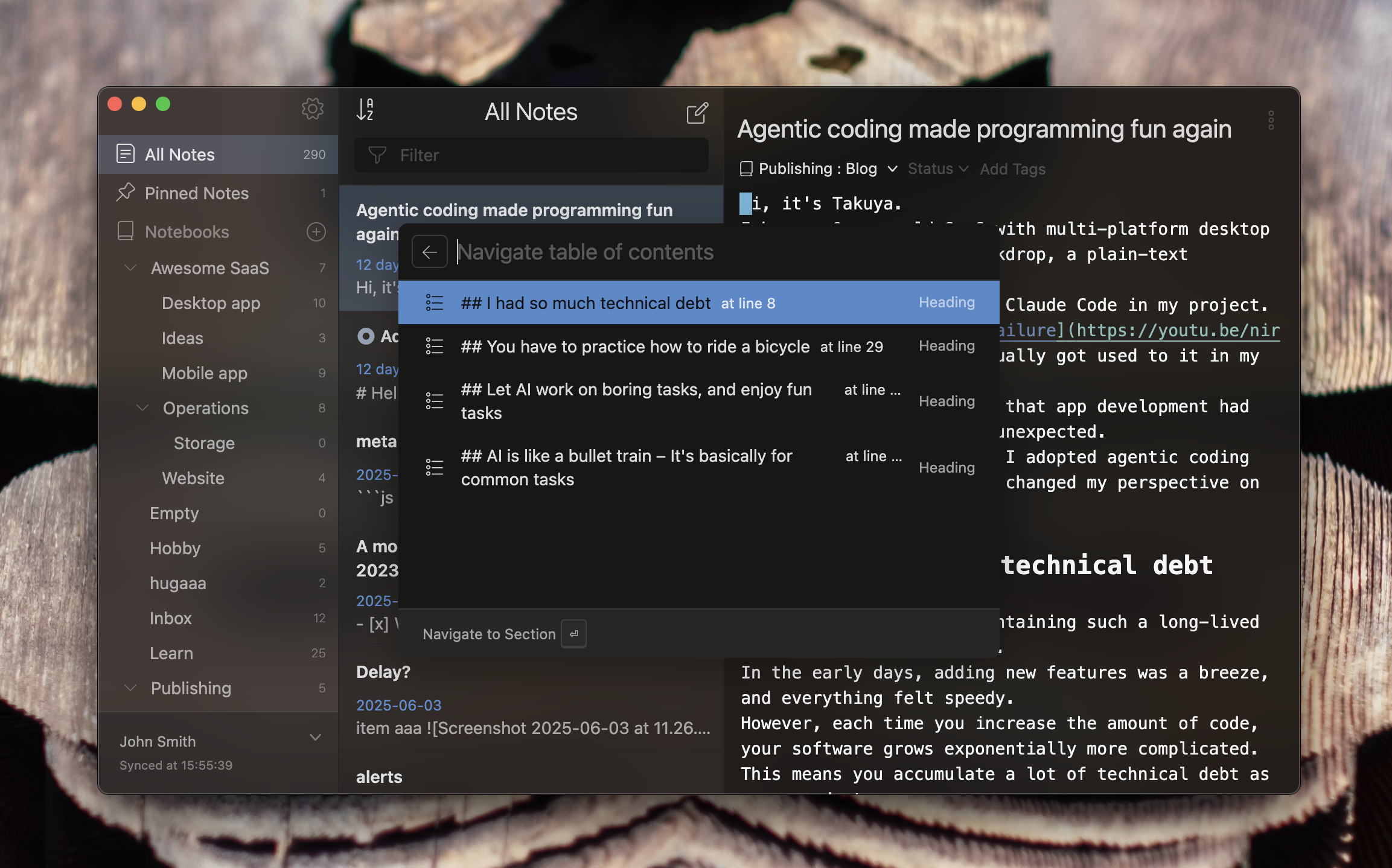
Press Enter to move the cursor to that line in the editor, or to scroll the preview to it when you're in preview mode. You can also click the # button in the editor header, which runs the plugin's telescope-toc:show command — it opens this source with the section your cursor is currently in already selected.
Switch themes
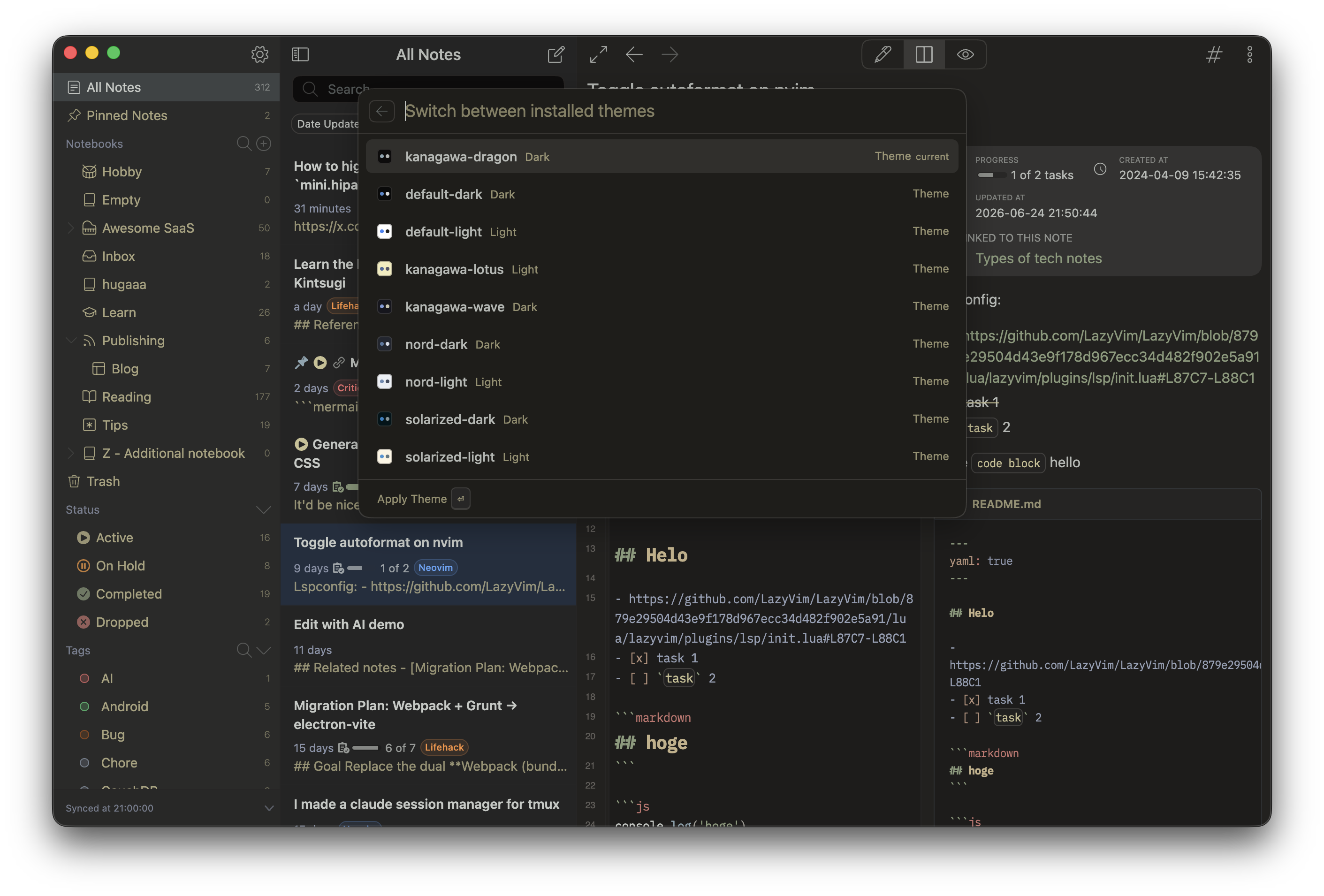
The telescope-themes plugin adds a Themes source (h) listing every installed theme, each with a swatch rendered from its color palette, whether it's light or dark, and a current badge on the one you're using. Press Enter to apply a theme immediately.
| Command | Default shortcut | What it does |
|---|---|---|
telescope-themes:show | Ctrl+Alt+T | Open Telescope on the theme list |
telescope-themes:toggle-light-dark | Ctrl+Alt+Shift+T | Switch between your preferred light and dark themes |
Both are in Plugins → Themes in the application menu too. The toggle remembers the last theme you applied for each appearance, so it takes you back to exactly the light or dark theme you were using.
Choose what Enter does
The footer along the bottom of Telescope always shows what will happen to the item you've selected, and which key does it. Hold Command / Ctrl or Shift and the highlighted action changes — press Enter while still holding it to run that action instead of the default one.
Keyboard reference
| Key | What it does |
|---|---|
| Command+K / Ctrl+K | Open or close Telescope |
| Up / Down | Select the previous / next item |
| Home / End | Select the first / last item |
| Enter | Run the action shown in the footer |
| prefix + Space | Narrow the search to that source |
| Esc | Clear the query, then go back to the source list, then close |
Open Telescope on a specific source
Some places in Inkdrop take you straight into a single source, skipping the list:
- Navigate → Run Command…, Go to Notebook/Workspace…, and Search Tags… in the application menu.
- The buttons next to Notebooks and Tags in the sidebar.
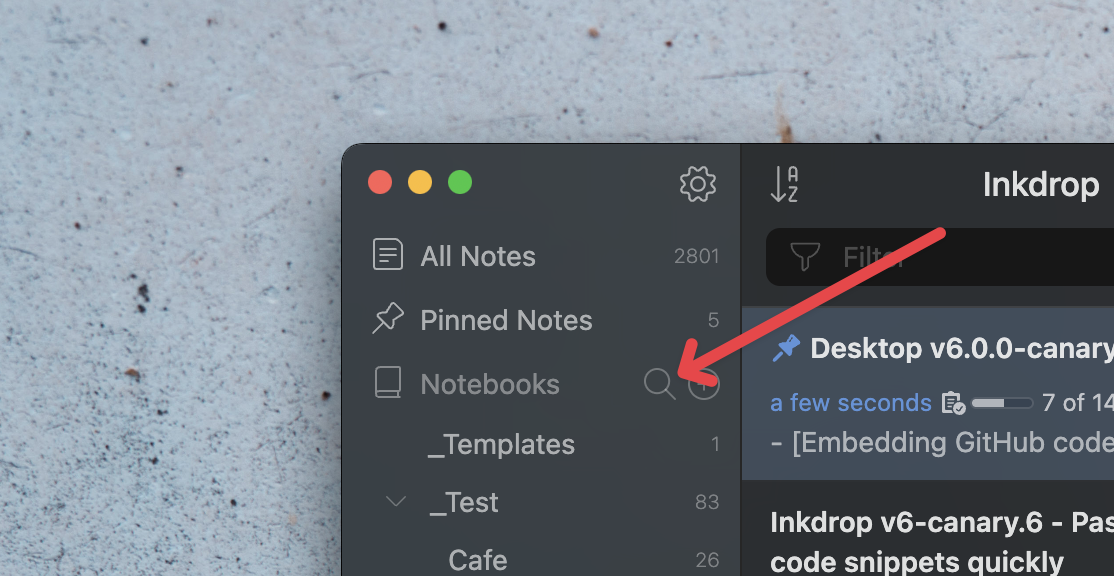
Opened from the sidebar, the search is limited to the workspace you're currently in. Opened any of these ways, Esc closes Telescope rather than taking you back to the source list.
Searching your notes
Telescope searches the things around your notes — commands, notebooks, tags, sections. To search the notes themselves, use the search bar above the note list. See Search and filter notes.
Customize prefixes and hide sources
Prefixes and the set of enabled sources can be changed in your config.json file. Each source is keyed by its ID — commands, books, and tags for the built-in ones, and whatever a plugin declares for its own (toc, themes):
{
  "telescope": {
    "sources": {
      "toc": {
        "alias": "o"
      },
      "tags": {
        "disabled": true
      }
    }
  }
}
alias— the prefix that scopes Telescope to this source.disabled— set totrueto leave the source out of Telescope entirely.
Add your own sources
Telescope is extensible: a plugin can register a source of its own, with its own items, icons, actions, and prefix — that's exactly what telescope-toc and telescope-themes do. Both are small, complete examples written in TypeScript — see the plugin development docs to build your own.
See also
- Get acquainted with Inkdrop interface
- Search and filter notes
- Customize keybindings
- Extend with plugins
Get help